Best Wayback Machine Downloader for Windows (2026 Guide)
Find the best Wayback Machine downloader for Windows to recover archived websites, restore files, fix links, and rebuild deploy-ready sites.
Quick answer
The best Wayback Machine downloader for Windows should help you recover more than old HTML pages. A useful downloader should download archived pages, recover CSS, JavaScript, images, rewrite internal links, and prepare the restored website for local review before deployment.
For Windows users, a desktop Wayback downloader is usually the most practical choice when you need control over recovered files, folders, assets, and cleanup.
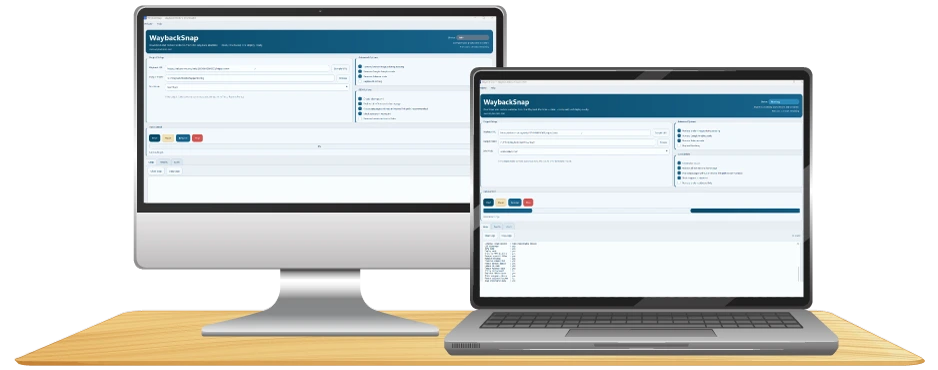
WaybackSnap is built for this workflow. It helps users download archived websites from the Wayback Machine and prepare the recovered files for review, cleanup, and relaunch.
What is a Wayback Machine downloader for Windows?
A Wayback Machine downloader for Windows is a desktop tool that helps recover website files from archived snapshots stored in the Wayback Machine.
Instead of opening archived pages one by one, copying source code manually, saving assets separately, and fixing links by hand, a downloader helps automate the recovery process.
A good Wayback downloader can help with:
- Downloading archived HTML pages.
- Recovering CSS files.
- Recovering JavaScript files.
- Downloading images and other public assets.
- Preserving old website paths when possible.
- Rewriting archived links into cleaner local links.
- Preparing files for review before upload.
- Supporting website restore workflows for old, deleted, or expired websites.
This matters because restoring a website is not only a file download task. If your goal is to rebuild a usable website, preserve SEO structure, or relaunch an old project, the recovered site needs clean pages, clean links, and clean assets.
Why use a desktop Wayback downloader instead of manual recovery?
Manual recovery can work for a very small website. If you only need one or two archived pages, you may be able to open the Wayback Machine, copy the page source, save assets, and fix links manually.
But manual recovery becomes difficult when the site has many pages, folders, images, scripts, and internal links.
A desktop Wayback downloader for Windows is useful when you need to recover many pages without copying every archived page manually.
It is also useful when you need to download website assets such as CSS, JavaScript, images, and media files more consistently.
A desktop workflow gives you more local control. You can inspect the restored folder, open files, test pages, remove broken archive URLs, and prepare the output before deployment.
Use a desktop Wayback downloader when you need:
- Full website recovery instead of one-page recovery.
- Local output that can be reviewed on Windows.
- Better control over HTML, CSS, JavaScript, and images.
- Cleaner internal navigation after restoration.
- A practical workflow for old client websites.
- A way to recover archived website files before rebuilding or redesigning.
The main advantage is control. You can recover the archived website locally, inspect the result, fix issues, and decide what should be published.
When you need a Wayback Machine downloader for Windows
You may need a Windows Wayback downloader if one of these situations applies to you:
- Your old website is gone and you do not have a backup.
- Your hosting account expired before you downloaded the site files.
- A client wants to rebuild an old website from archived snapshots.
- You need to recover old landing pages, service pages, or blog content.
- You want to restore an archived website before redesigning it.
- You need HTML, CSS, JavaScript, and images from a previous website version.
- You want a local copy of an archived website for cleanup or migration.
- You need to restore website structure before planning redirects and SEO cleanup.
These are common website recovery scenarios. In most of them, the goal is not simply to download a page. The real goal is to rebuild a usable version of the site.
What makes the best Wayback Machine downloader?
The best Wayback Machine downloader is not always the tool with the most advanced interface. It is the tool that solves the recovery workflow with the least friction.
A strong downloader should help you move from archived snapshot to clean local files.
The most important features are:
- Snapshot selection.
- Full page download.
- Asset recovery.
- Internal link rewriting.
- Clean folder output.
- SEO-aware restoration.
- Windows-friendly local workflow.
- Clear recovery limitations.
1. Snapshot selection
A useful downloader should help you work from a specific archived snapshot or date.
This is important because not every archived version of a website is complete. One snapshot may contain the homepage but miss images. Another snapshot may contain better internal pages but outdated styling.
Before restoring a website, check:
- Whether the homepage loads correctly.
- Whether important internal pages are available.
- Whether CSS and images are archived.
- Whether the old navigation still works.
- Whether the content version is the one you actually want.
- Whether the snapshot contains broken archive elements.
Do not assume the newest archived snapshot is always the best. Sometimes an older snapshot contains a more complete version of the website.
2. Asset recovery
A website is more than HTML.
If a downloader only saves page markup but misses CSS, JavaScript, and images, the restored site may look broken.
A strong web archive downloader should help recover:
- HTML files.
- CSS files.
- JavaScript files.
- Images.
- Fonts when available.
- Linked assets.
- Folder paths.
- Internal resources.
This is especially important for business websites, landing pages, portfolios, and WordPress-style frontends where layout depends heavily on CSS and images.
3. Internal link rewriting
Archived pages often contain URLs that point back to the Wayback Machine or to old domain paths.
For example, internal links may still include archive wrappers, timestamped URLs, or broken references to assets that no longer exist on the live domain.
A good downloader should help convert these into cleaner links so the restored website can work locally or on a new hosting environment.
Internal link cleanup matters for users and search engines. If visitors click a menu item and land on a broken archive URL, the site is not truly restored.
4. Clean output structure
The best downloader should produce files that are easy to understand.
Clean output makes it easier to:
- Review recovered files.
- Delete unnecessary archive files.
- Edit pages manually.
- Upload the website to hosting.
- Move the site into another framework.
- Prepare redirects or canonical URLs.
- Run a technical SEO audit before relaunch.
Messy output slows down the recovery project. Clean output makes the restored website easier to maintain.
5. SEO-aware recovery
If the restored website is meant to go live again, SEO should be considered from the beginning.
A SEO-aware recovery workflow should help you preserve or rebuild:
- Important old URLs.
- Page titles.
- Meta descriptions.
- Internal links.
- Image alt text where available.
- Canonical URL decisions.
- Sitemap planning.
- Robots.txt rules.
- Redirect mapping.
This does not mean every archived page should be republished exactly as it was. It means the recovery process should protect important structure while giving you room to clean outdated or low-quality pages.
6. Windows-friendly workflow
For Windows users, the best tool should feel natural on Windows.
That means:
- Clear desktop interface.
- Local file output.
- Easy folder access.
- Practical controls for non-developers.
- Enough flexibility for developers and agencies.
- No complicated command-line dependency for basic use.
- Simple review workflow before deployment.
A Windows desktop app is especially helpful when you want to recover files, inspect folders, and test output locally before deployment.
Best Wayback Machine downloader for Windows: what to look for
Before choosing a downloader, look for features that support the full recovery workflow.
Windows desktop support
The tool should run locally on Windows and let you save files to your own computer.
This is useful when you want to inspect the restored website before uploading it anywhere.
Full website download
A strong downloader should help recover more than a single page.
If you need to restore a real website, you usually need the homepage, internal pages, assets, and navigation structure.
Asset recovery
The downloader should help recover CSS, JavaScript, images, and other public files that make the website usable.
Without asset recovery, the restored website may load as plain or broken HTML.
Link rewriting
A useful downloader should help remove archive-style URLs and rewrite internal navigation into cleaner links.
This makes the restored site easier to browse locally and easier to prepare for deployment.
Clean file output
The output should be understandable. You should be able to open the folder, review the files, and identify what needs cleanup.
SEO structure support
If you plan to relaunch the site, the workflow should support SEO cleanup.
Important areas include URLs, metadata, internal links, canonical rules, sitemap planning, and redirect mapping.
WordPress, HTML, and PHP awareness
Archived websites may come from different platforms.
A downloader should be useful for recovering public frontend files from WordPress-style sites, static HTML sites, and PHP-based sites when the public output was archived.
Clear limitations
A trustworthy tool should explain what cannot always be recovered.
No downloader can recover files that were never archived. A downloader also cannot fully restore private databases, admin dashboards, user accounts, payment systems, or server-side logic from public archive snapshots.
WaybackSnap is designed around these recovery needs. You can download WaybackSnap for Windows and use it as a desktop workflow for recovering archived websites from the Wayback Machine.
Desktop Wayback downloader vs online tools
Online tools can be useful for simple tasks, but desktop software is usually better for serious website recovery work.
Manual browser recovery is best for one or two pages. It is simple, but it becomes too slow for full websites.
Online downloaders may help with small downloads or quick checks. The limitation is that you may have less control over the recovered structure.
Scripts can be useful for developers, but they often require setup, debugging, and command-line experience.
A desktop Windows downloader is usually the best option when you want a practical website recovery workflow with local file review and cleanup.
A desktop downloader is not magic. You still need to review the recovered website. But it gives you a stronger starting point than manual recovery.
Recommended recovery workflow
Use this workflow when restoring an archived website on Windows.
Step 1: Identify the old domain and target snapshot
Start with the domain you want to recover. Then inspect archived snapshots and choose a version that appears complete.
Check the homepage first.
Then check:
- Main navigation.
- Important service pages.
- Product pages.
- Blog pages.
- CSS loading.
- Image loading.
- Mobile layout when possible.
The goal is to avoid restoring from a broken or incomplete snapshot.
Step 2: Download the archived website
Use a Wayback downloader to recover the site files from the selected snapshot.
At this stage, focus on getting the core structure:
- Main pages.
- Supporting assets.
- Folder structure.
- Navigation links.
- Important media files.
Do not publish the result immediately. Treat the download as the beginning of the restoration process, not the final output.
Step 3: Review the recovered files locally
Open the recovered website locally and test the main pages.
Look for:
- Missing CSS.
- Broken images.
- Broken JavaScript.
- Archive toolbar leftovers.
- Links pointing to archived URLs.
- Duplicate pages.
- Empty pages.
- Redirect-like pages.
- Old tracking scripts.
This review step is important because archived websites often contain partial data. Some pages may be complete, while others may need manual cleanup.
Step 4: Clean internal links and asset paths
After the files are recovered, clean the structure so the website can work outside the archive.
Focus on:
- Navigation links.
- Header links.
- Footer links.
- Image paths.
- CSS paths.
- JavaScript paths.
- Canonical links.
- Sitemap URLs.
- Old absolute URLs.
This is where a downloader with link rewriting can save a lot of time.
Step 5: Prepare the restored website for SEO
Before relaunching, review the site as a technical SEO project.
Ask these questions:
- Does each important page have a unique title?
- Is there only one clear H1 per page?
- Are internal links crawlable?
- Are important pages reachable from navigation?
- Are old high-value URLs preserved where possible?
- Are removed pages redirected properly?
- Is the sitemap updated?
- Is robots.txt configured correctly?
- Are canonical URLs clean?
If the restored website is for a business, SEO cleanup should happen before launch, not after.
Step 6: Test before deployment
Before uploading the restored site to production, test it locally or in a staging environment.
Review:
- Desktop layout.
- Mobile layout.
- Page speed basics.
- Broken links.
- Missing images.
- Form behavior.
- Navigation.
- 404 pages.
- Sitemap and robots.txt.
A restored site should not go live just because the files exist. It should go live only after the structure is clean enough for users and search engines.
What a Wayback downloader can recover
A Wayback downloader can only work with what was archived.
It may help recover:
- Static HTML pages.
- CSS files.
- JavaScript files.
- Images.
- Some media assets.
- Old page structure.
- Internal links.
- Public-facing content.
This is often enough to rebuild a usable frontend version of an old website.
What a Wayback downloader cannot fully recover
A downloader may not fully recover:
- Server-side databases.
- Admin dashboards.
- Private user accounts.
- Backend logic.
- Payment systems.
- Contact form processing.
- Dynamic search features.
- Plugin settings.
- Content that was never archived.
- Files blocked from crawling at the time.
This is important for WordPress, PHP, and database-driven websites. The public frontend may be recoverable, but the original backend database is usually not restored from the Wayback Machine.
Is a Wayback downloader enough to restore a WordPress site?
It depends on what you mean by restore.
If you want to recover the visual frontend of an old WordPress site, a Wayback downloader may help you recover public pages, HTML output, images, CSS, and scripts.
If you want the original WordPress admin dashboard, plugins, users, database, and server-side settings, the Wayback Machine usually cannot provide that.
For many recovery projects, the practical goal is to rebuild the public website from archived pages, then convert or migrate the recovered content into a new setup.
That may mean:
- Rebuilding as static HTML.
- Migrating content into a new WordPress install.
- Rebuilding templates manually.
- Using recovered pages as a reference for redesign.
- Keeping important URLs and content structure for SEO.
For WordPress-specific recovery, read the upcoming guide on how to restore a WordPress site from the Wayback Machine.
Why Windows users choose a desktop recovery workflow
Windows users often prefer a desktop workflow because it keeps the recovery process visible and local.
You can download the archived site, inspect the output folder, open files, test pages, and prepare the project for deployment without relying completely on a remote tool.
This is helpful for:
- Freelancers restoring client websites.
- Site owners without recent backups.
- Agencies rebuilding old projects.
- Developers auditing archived pages.
- SEO teams preserving old URL structures.
- Designers recreating a previous layout.
A desktop workflow gives you a practical bridge between the Wayback Machine and a working local website.
How WaybackSnap fits this workflow
WaybackSnap is a Windows desktop app built to help users download and restore websites from the Wayback Machine.
It is especially useful when you need a structured recovery workflow instead of manual page-by-page copying.
Use WaybackSnap when you want to:
- Download archived website files.
- Recover pages from old snapshots.
- Restore a website from the Wayback Machine.
- Work locally on Windows.
- Clean and review recovered files.
- Prepare a site for relaunch.
- Support SEO-aware recovery decisions.
Start from the WaybackSnap homepage to understand the product, or go directly to download WaybackSnap for Windows.
Buyer checklist: choosing the best Wayback Machine downloader for Windows
Before choosing a downloader, ask these questions:
- Does it work well on Windows?
- Can it download more than a single page?
- Can it recover CSS, JavaScript, images, and other assets?
- Can it help clean Wayback archive URLs?
- Does it produce files I can inspect locally?
- Does it support a workflow for full website recovery?
- Can it help preserve old URL structure?
- Does it make the restored site easier to deploy?
- Does it explain recovery limitations clearly?
- Does it save enough time compared with manual restoration?
The best tool is the one that gets you from archived snapshot to usable website files with fewer manual errors.
Common mistakes when downloading a website from the Wayback Machine
Avoid these mistakes during recovery:
- Choosing a snapshot without checking whether assets are available.
- Publishing recovered files without cleaning archive links.
- Ignoring broken internal navigation.
- Keeping duplicate or low-value pages without review.
- Forgetting to update canonical URLs.
- Forgetting to generate a clean sitemap.
- Leaving old tracking scripts or archive-specific code.
- Assuming the backend database can be recovered from public snapshots.
- Restoring every page without checking quality.
- Waiting until after launch to fix SEO issues.
A good recovery project should be selective, structured, and tested.
SEO notes before relaunching a restored site
If you plan to publish the restored website, treat the project like a website migration.
Before launch:
- Decide whether you will use www or non-www.
- Decide whether URLs will use trailing slashes.
- Preserve important old URLs when possible.
- Redirect removed pages to the most relevant new pages.
- Create clean page titles.
- Write unique meta descriptions.
- Check heading structure.
- Rebuild internal links.
- Generate a new sitemap.
- Configure robots.txt.
- Test important pages on mobile.
- Crawl the restored site before launch.
For a deeper SEO workflow, read the related guide on SEO-friendly website restoration after recovery.
Final recommendation
If you only need to recover one page, manual recovery may be enough.
If you need to restore an archived website, recover assets, rebuild internal links, and prepare the site for relaunch, use a dedicated Windows desktop workflow.
The best Wayback Machine downloader for Windows should help you move from archived snapshot to clean local files with less manual work and fewer broken links.
For that workflow, start with WaybackSnap or download the Windows app, then review your recovered website carefully before publishing it again.
FAQ
What is the best Wayback Machine downloader for Windows?
The best Wayback Machine downloader for Windows is one that can recover archived pages, assets, internal links, and clean local files for review and deployment. For users who want a desktop workflow, WaybackSnap is built specifically for downloading and restoring websites from the Wayback Machine.
Can I download an entire website from the Wayback Machine?
In many cases, you can recover a large part of an archived website, including HTML pages, images, CSS, and JavaScript. However, the result depends on what the Wayback Machine actually archived. Missing files, blocked assets, and dynamic backend features may not be recoverable.
Can a Wayback downloader restore WordPress?
A downloader may help recover the public frontend of a WordPress site, such as pages, images, CSS, and HTML output. It usually cannot recover the original WordPress database, admin dashboard, users, plugins, or backend settings from the Wayback Machine alone.
Is a desktop Wayback downloader better than an online downloader?
For serious recovery work, desktop software often gives more control. You can save files locally, inspect the output, clean links, test pages, and prepare the site for deployment. Online tools may be useful for smaller or simpler tasks.
Will a restored website keep its SEO rankings?
Not automatically. SEO recovery depends on URL structure, content quality, internal links, metadata, redirects, indexation, and technical cleanup. Treat archived website restoration like a migration project, not just a file download.
Can I restore a website without a backup?
Yes, if enough public pages and assets were archived by the Wayback Machine. A downloader can help recover what is available, but it cannot recreate private databases, server-side code, or files that were never archived.
What should I do after downloading archived website files?
Review the recovered files locally, fix broken links, remove archive-specific code, check missing assets, update metadata, prepare redirects, and test the restored site before deployment.
Need a structured restore workflow?
Explore WaybackSnap pricing and choose a plan that fits your website recovery projects.