How to Download a Website from Wayback Machine
Learn how to download a website from the Wayback Machine, recover archived HTML, CSS, JavaScript, images, and prepare the restored site for cleanup.
Quick answer
To download a website from the Wayback Machine, you need to find the archived version of the site, choose a complete snapshot, recover the HTML pages, download linked assets such as CSS, JavaScript, and images, then clean internal links before publishing the site again.
For one or two pages, manual recovery may be enough. For a full website, a dedicated web archive downloader is usually faster and more reliable.
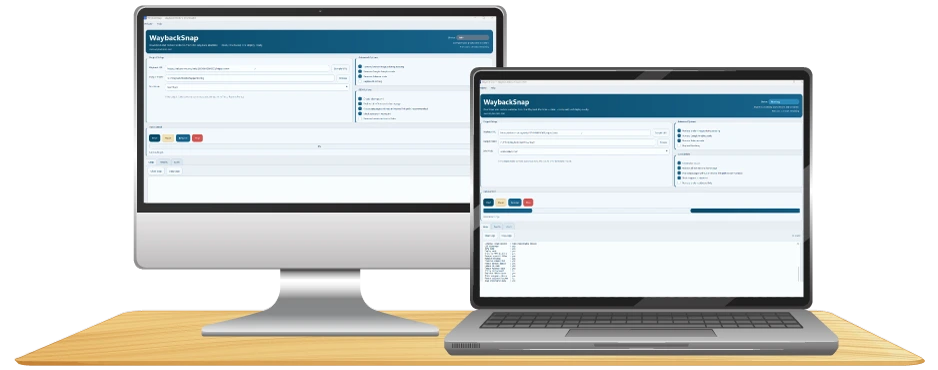
WaybackSnap is built to help Windows users download archived websites from the Wayback Machine and prepare recovered files for local review, cleanup, and relaunch.
What does it mean to download a website from the Wayback Machine?
Downloading a website from the Wayback Machine means recovering public files that were captured in archived snapshots.
This may include:
- HTML pages.
- CSS files.
- JavaScript files.
- Images.
- Fonts when available.
- Linked documents or media files.
- Old URL paths.
- Public-facing content.
A website download from the Wayback Machine is not the same as restoring a full hosting account. The Wayback Machine stores public snapshots of web pages. It usually does not store private databases, admin dashboards, server-side settings, payment systems, user accounts, or backend logic.
That means you can often recover the frontend of a website, but not always the original backend system.
When should you download a website from the Wayback Machine?
You may need to download a website from the Wayback Machine when:
- Your old website was deleted.
- Your hosting expired before you made a backup.
- You lost access to old website files.
- A client wants to rebuild an old website.
- You want to recover old landing pages.
- You need to restore archived blog content.
- You want to rebuild an old HTML or WordPress-style website.
- You need old page copy, images, or layout references.
- You want to recover website structure before planning an SEO migration.
The most common goal is not only to download files. The real goal is to rebuild a usable website from archived public pages.
Before you start
Before downloading archived website files, prepare these details:
- The old domain name.
- The preferred archived date or year.
- A list of important pages you want to recover.
- A folder on your computer for recovered files.
- A plan for reviewing broken links and missing assets.
- A decision about whether the restored site will go live again.
If the website will be relaunched, you should also prepare basic SEO rules before extraction.
Decide:
- Whether the new site will use www or non-www.
- Whether URLs will use trailing slashes.
- Which old URLs must be preserved.
- Which pages should be redirected.
- Which pages should not be republished.
- Which pages need rewritten titles and descriptions.
This helps you avoid rebuilding a messy site that later needs another cleanup.
Step 1: Find the archived website
Start by opening the Wayback Machine and entering the old domain or page URL.
For example:
- example.com
- example.com/about
- example.com/services
- example.com/blog/old-post
After entering the URL, review the available archived dates.
Do not immediately choose the newest snapshot. The newest version is not always the most complete version.
Look for a snapshot where:
- The homepage loads correctly.
- The design appears complete.
- Navigation links work.
- Important pages are available.
- Images load properly.
- CSS styling is present.
- The content version matches what you want to recover.
A complete snapshot is more useful than a newer but broken snapshot.
Step 2: Check the homepage first
The homepage usually gives you the best overview of the archived website.
Open the homepage snapshot and check:
- Header navigation.
- Footer links.
- Main call-to-action buttons.
- Images and hero section.
- CSS styling.
- JavaScript-based sections.
- Internal links.
- Contact links.
- Old brand assets.
If the homepage is broken, check nearby dates. Sometimes a capture from the previous month or previous year has better assets.
Step 3: Check important internal pages
After checking the homepage, open the most important internal pages.
Start with:
- About page.
- Service pages.
- Product pages.
- Pricing page.
- Contact page.
- Blog index.
- High-value blog posts.
- Landing pages.
- Legal pages if needed.
A website recovery project should prioritize valuable pages first.
If you are restoring a business website, prioritize pages that explain the business, services, offers, and conversion paths.
If you are restoring content for SEO, prioritize pages that had search value, backlinks, or useful content.
Step 4: Choose the best snapshot
The best snapshot is the one with the most complete recovery potential.
Choose a snapshot based on:
- Page completeness.
- Asset availability.
- Working internal links.
- Correct content version.
- Clean layout.
- Fewer missing files.
- Fewer broken archive elements.
You may need to test multiple snapshots before downloading.
In some cases, the best recovery comes from combining files from several snapshots. For example, the homepage may be better in one snapshot, while images or internal pages may be better in another.
Step 5: Download the archived website
There are two main ways to download archived website files.
Option 1: Manual download
Manual download means opening each archived page, saving the HTML, then downloading assets one by one.
This can work if you only need one page or a very small website.
Manual recovery is useful when:
- You need one specific page.
- You only want old text content.
- You want to copy a small layout.
- You do not need a full website structure.
Manual recovery becomes difficult when the site has many pages, images, scripts, and internal links.
Option 2: Use a Wayback Machine website downloader
A Wayback Machine website downloader helps automate recovery.
A good downloader can help recover:
- Multiple pages.
- Website folders.
- CSS files.
- JavaScript files.
- Images.
- Internal links.
- Public assets.
- Local website structure.
This is usually the better option when you want to restore a full archived website.
If you are using Windows, read the related guide: Best Wayback Machine Downloader for Windows.
You can also go directly to download WaybackSnap for Windows.
Step 6: Save files locally
After downloading the archived site, save the files in a clear folder.
Use a folder name that includes the domain and snapshot date.
Example:
- example-com-archive-2024-08
- client-site-wayback-2023-11
- old-brand-restoration-2022-snapshot
Inside the folder, keep the structure easy to inspect.
A clean recovery folder makes it easier to:
- Review files.
- Find missing assets.
- Rename folders.
- Remove duplicate pages.
- Prepare deployment.
- Share the project with a developer or client.
Step 7: Open the recovered website locally
Before editing anything, open the recovered website locally.
Check the homepage first. Then open important internal pages.
Look for:
- Missing CSS.
- Broken images.
- Broken JavaScript.
- Empty pages.
- Archive toolbar leftovers.
- Links pointing back to web.archive.org.
- Old tracking scripts.
- Broken buttons.
- Broken menus.
- Missing font files.
- Duplicate pages.
Do not upload the recovered site immediately. A Wayback download is a recovery starting point, not a finished production website.
Step 8: Fix internal links
Archived websites often contain links that still point to old domains or archive URLs.
You may see links that point to:
- web.archive.org URLs.
- Old absolute URLs.
- Missing pages.
- Old staging domains.
- Deleted assets.
- HTTP versions of URLs.
- Duplicate slash or folder patterns.
Clean internal links so the restored website can work outside the archive.
Focus on:
- Header navigation.
- Footer navigation.
- Sidebar links.
- Button links.
- Blog links.
- Image links.
- CSS paths.
- JavaScript paths.
For SEO, internal links should use descriptive anchor text.
Good examples:
- download WaybackSnap for Windows
- restore archived websites
- Best Wayback Machine Downloader for Windows
Avoid vague anchors like:
- click here
- read more
- this page
- link
Step 9: Recover CSS, JavaScript, and images
A restored website needs more than HTML.
Check whether the download includes:
- Stylesheets.
- Scripts.
- Images.
- Icons.
- Logos.
- Background images.
- Fonts.
- PDF files if relevant.
If the page loads without styling, CSS files may be missing.
If buttons, sliders, tabs, or menus do not work, JavaScript files may be missing or broken.
If the layout is correct but images are missing, image paths may need cleanup.
Common asset problems include:
- Files were not archived.
- Files were blocked from crawling.
- The archived page references a different snapshot date.
- Asset URLs still point to the old domain.
- Asset URLs still point to archive wrappers.
- File paths were rewritten incorrectly.
When this happens, check nearby snapshots to see whether the missing files exist in another archived date.
Step 10: Remove archive-specific code
Archived pages may include code that should not exist on the restored website.
Review the recovered files and remove:
- Archive toolbar code.
- Old injected archive scripts.
- Broken analytics scripts.
- Old tracking pixels.
- Expired third-party widgets.
- Broken ad scripts.
- Old chat widgets.
- Duplicate canonical tags.
- Unnecessary redirect scripts.
Keep the restored website clean. The final version should behave like an independent website, not like a page still running inside an archive viewer.
Step 11: Prepare the restored website for SEO
If the restored site will go live again, treat the project like a website migration.
Check every important page for:
- Unique page title.
- Clear meta description.
- One clear H1.
- Logical H2 and H3 structure.
- Clean internal links.
- Clean image alt text.
- Correct canonical URL.
- No archive URLs in links.
- No broken important assets.
- Mobile-friendly layout.
Also prepare:
- Sitemap.xml.
- Robots.txt.
- Redirect mapping.
- 404 page.
- Basic structured data where relevant.
If you are publishing blog content, use Article or BlogPosting structured data.
If your blog has categories or hierarchy, use BreadcrumbList structured data.
Step 12: Test before publishing
Before publishing the recovered website, test it in a staging environment or local preview.
Check:
- Homepage.
- Main navigation.
- Footer.
- Important internal pages.
- Download links.
- Contact links.
- Mobile layout.
- Desktop layout.
- Images.
- Forms.
- Page speed basics.
- Broken links.
- Canonical tags.
- Sitemap.
- Robots.txt.
A restored website should not be published just because the files were recovered. It should be published after review, cleanup, and quality checks.
Can you download an entire website from the Wayback Machine?
Sometimes yes, but not always completely.
You may be able to recover a large part of a website if the Wayback Machine captured enough pages and assets.
However, a complete download depends on:
- How often the site was archived.
- Whether important pages were crawlable.
- Whether CSS and JavaScript files were captured.
- Whether images were archived.
- Whether the site blocked crawlers.
- Whether content required login.
- Whether the site depended heavily on backend rendering.
A downloader can only recover what was publicly archived.
Can you download a WordPress site from the Wayback Machine?
You can often recover the public frontend of a WordPress site.
That may include:
- Rendered HTML pages.
- Blog post content.
- Images.
- CSS files.
- JavaScript files.
- Public media files.
- Public page structure.
But you usually cannot recover:
- WordPress admin dashboard.
- MySQL database.
- Plugin settings.
- Theme PHP files.
- User accounts.
- Orders.
- Form submissions.
- Server-side logic.
If your goal is to rebuild a WordPress site, you may use the recovered pages as source material, then rebuild the site in a new WordPress installation or convert it into a static website.
Can you download PHP or database-driven websites?
You can usually recover the public HTML output if it was archived.
You usually cannot recover the original PHP backend, database, admin system, or server-side application logic.
For PHP websites, the Wayback Machine may show what the page looked like to visitors. It does not usually expose the original server-side code.
That means a restored PHP site may need to be rebuilt as:
- Static HTML.
- A new PHP project.
- A new WordPress site.
- A new framework-based site.
- A redesigned website using recovered content.
How to handle missing pages
Missing pages are common in archive recovery.
If a page was not archived, try:
- Checking another snapshot date.
- Checking the same URL with or without trailing slash.
- Checking HTTP and HTTPS versions.
- Checking www and non-www versions.
- Searching for old internal links.
- Checking old sitemap URLs if available.
- Looking for cached references in other pages.
If a page cannot be recovered, decide whether to:
- Rebuild it manually.
- Redirect it to a relevant page.
- Leave it unpublished.
- Replace it with updated content.
Do not publish empty pages only because the URL existed before.
How to handle missing images
If images are missing, check:
- Whether the image URL was archived.
- Whether the image path changed across snapshots.
- Whether the file was hosted on a CDN.
- Whether the image was loaded from CSS.
- Whether the image was lazy-loaded.
- Whether the image had a different file extension.
Try nearby snapshots before giving up.
If an image cannot be recovered, replace it with a new image instead of leaving broken image placeholders.
How to handle broken CSS
Broken CSS usually means the stylesheet was not downloaded, not archived, or still points to an archive URL.
Check:
- The CSS file path.
- The original stylesheet URL.
- Nearby snapshots.
- Whether the CSS was hosted on another domain.
- Whether relative paths were rewritten correctly.
- Whether background images inside CSS are missing.
If CSS cannot be fully recovered, you may need to rebuild the styling manually.
How to handle broken JavaScript
Broken JavaScript can affect:
- Menus.
- Sliders.
- Tabs.
- Accordions.
- Forms.
- Popups.
- Animations.
- Tracking scripts.
First, decide whether the script is still needed.
Many old scripts should be removed instead of repaired.
Keep JavaScript only if it supports useful functionality on the restored site.
SEO checklist after downloading a website from the Wayback Machine
After downloading the archived website, use this checklist before launch.
- Remove archive toolbar code.
- Replace archive URLs with clean internal URLs.
- Fix broken navigation.
- Fix missing assets where possible.
- Preserve important old URLs.
- Redirect removed pages.
- Rewrite duplicate titles.
- Rewrite weak meta descriptions.
- Add clear H1 headings.
- Improve internal links.
- Add image alt text.
- Generate sitemap.xml.
- Configure robots.txt.
- Add canonical URLs.
- Add structured data where relevant.
- Test mobile rendering.
- Crawl the restored site before publishing.
If you need a deeper restoration checklist, read the related guide: Wayback Machine SEO Restoration Checklist.
Common mistakes to avoid
Avoid these mistakes when downloading a website from the Wayback Machine:
- Downloading from the first snapshot without checking quality.
- Assuming the newest snapshot is the best.
- Publishing recovered files without cleanup.
- Leaving web.archive.org URLs inside the site.
- Ignoring broken CSS and images.
- Keeping duplicate metadata.
- Forgetting mobile testing.
- Assuming WordPress databases can be recovered.
- Restoring low-quality pages only because they existed before.
- Waiting until after launch to fix SEO problems.
A clean website recovery project needs both file recovery and quality control.
Recommended workflow with WaybackSnap
If you are using WaybackSnap, a practical workflow is:
- Enter the old website URL.
- Choose the archived snapshot you want to recover.
- Download the available website files.
- Save the output locally on Windows.
- Open the recovered site folder.
- Review the homepage and key pages.
- Fix broken links and assets.
- Remove archive-specific code.
- Prepare SEO cleanup.
- Test the restored website before publishing.
Final recommendation
If you only need one archived page, manual recovery may be enough.
If you need to download a full website from the Wayback Machine, recover assets, clean internal links, and prepare the site for relaunch, use a dedicated web archive downloader.
For Windows users, WaybackSnap gives you a practical desktop workflow to download archived websites, review recovered files locally, and prepare the restored website for cleanup.
Start with WaybackSnap website, download the app from the Windows download page, and use this guide as your recovery checklist.
FAQ
How do I download a website from the Wayback Machine?
Find the archived website in the Wayback Machine, choose a complete snapshot, download the HTML pages and assets, then clean internal links, CSS paths, JavaScript paths, images, and SEO metadata before publishing.
Can I download an entire website from the Wayback Machine?
Sometimes. You can only download what was archived. If the Wayback Machine captured the pages, CSS, JavaScript, and images, you may recover much of the site. If files were blocked, missing, or never captured, they may not be recoverable.
What is the easiest way to download a website from the Wayback Machine?
For a small number of pages, manual recovery may work. For a full site, the easiest workflow is to use a Wayback Machine website downloader such as WaybackSnap for Windows.
Can I restore a deleted website from the Wayback Machine?
Yes, if enough public pages and assets were archived. You can recover the visible frontend, clean the files, rebuild missing parts, and prepare the site for relaunch.
Can I recover CSS and images from the Wayback Machine?
Often yes, but only if those assets were archived. If CSS, JavaScript, or images are missing, check nearby snapshots or replace the missing assets manually.
Can I recover a WordPress website from the Wayback Machine?
You can often recover the public frontend of a WordPress site, including pages, images, CSS, and JavaScript. You usually cannot recover the original WordPress database, admin dashboard, plugin settings, or backend logic.
Can I upload the downloaded website directly to hosting?
You can, but you should not publish it immediately without review. First remove archive URLs, fix broken assets, clean metadata, test mobile layout, generate a sitemap, and confirm that important pages work correctly.
Is downloading from the Wayback Machine enough for SEO recovery?
No. Downloading files is only the first step. SEO recovery also requires clean URLs, metadata, internal links, redirects, canonical tags, sitemap, robots.txt, and quality review before launch.
Need a structured restore workflow?
Explore WaybackSnap pricing and choose a plan that fits your website recovery projects.