How to Restore a Website from Wayback Machine
Learn how to restore a website from the Wayback Machine, recover archived pages, rebuild assets, fix links, and prepare the restored site for relaunch.
Quick answer
To restore a website from the Wayback Machine, start by finding the most complete archived snapshot, recover the important pages, download available assets, clean archive links, rebuild missing parts, and test the restored website before publishing it again.
A restored website should not be treated as finished immediately after download. The recovery process usually requires cleanup, link fixing, asset review, and basic launch checks.
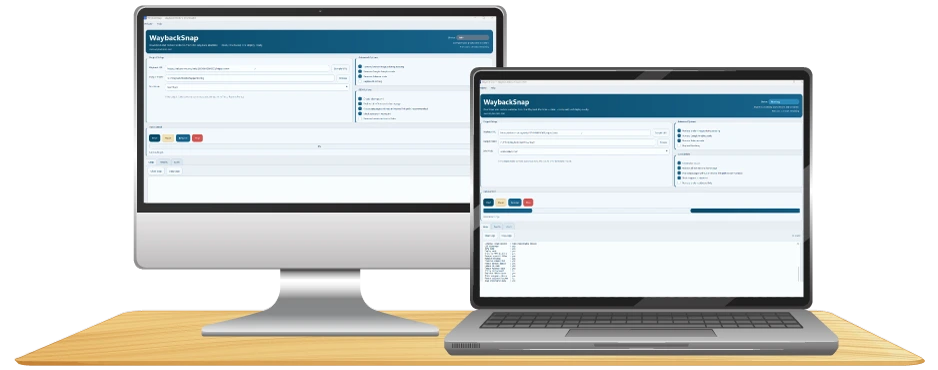
If you need a desktop workflow for recovering archived website files, WaybackSnap can help you restore public website pages from Wayback Machine snapshots and review the output locally.
What does it mean to restore a website from the Wayback Machine?
Restoring a website from the Wayback Machine means rebuilding a usable version of a website from archived public snapshots.
The Wayback Machine may contain old versions of:
- Homepages.
- Internal pages.
- Blog posts.
- Landing pages.
- Images.
- CSS files.
- JavaScript files.
- Public media files.
- Old URL paths.
A restoration project usually has one main goal: turn archived public pages into a working website again.
This may be useful when the original website was deleted, the hosting account expired, the backup was lost, or a previous version of a site needs to be rebuilt.
What can be restored from the Wayback Machine?
The Wayback Machine can often help restore public-facing website content.
You may be able to recover:
- HTML pages.
- Text content.
- Page layouts.
- Navigation structure.
- Images.
- Stylesheets.
- JavaScript files.
- Public documents.
- Old blog posts.
- Product or service pages.
- Previous design references.
This is usually enough to rebuild the visible frontend of many websites.
However, the quality of the restoration depends on what was archived. If a page, image, script, or stylesheet was never captured, it may need to be replaced or rebuilt manually.
What usually cannot be restored?
The Wayback Machine does not usually restore the original backend system.
In most cases, you should not expect to recover:
- Hosting account files.
- Server configuration.
- Databases.
- WordPress admin dashboard.
- WordPress plugin settings.
- User accounts.
- Customer records.
- Order history.
- Contact form submissions.
- Payment system logic.
- Private files.
- Backend PHP, Node.js, Python, or server-side code.
For example, an archived WordPress page may show the public HTML output, but that does not mean the original WordPress database or admin panel can be restored.
This distinction is important. The Wayback Machine can help you rebuild what visitors could see, but it usually cannot rebuild the private system behind the website.
When should you restore a website from the Wayback Machine?
You may need to restore a website from the Wayback Machine when:
- Your website was deleted.
- Your hosting expired.
- You lost your website backup.
- Your domain changed ownership.
- A client wants an old website rebuilt.
- You need old content from a previous version.
- You want to recover old landing pages.
- You need to rebuild a site before redesigning it.
- You want to preserve old URL structure.
- You need archived content for a migration project.
A Wayback restoration is especially useful when the original site is gone but the archived version still contains enough public content to rebuild from.
Before you restore the website
Before downloading or rebuilding anything, prepare a restoration plan.
Start with these questions:
- What domain do you want to restore?
- Which version of the website do you want to recover?
- Which pages are most important?
- Will the restored website go live again?
- Will it use the same domain or a new domain?
- Do you need the same URL structure?
- Do you only need content, or do you need a working website?
- Do you need HTML output, WordPress content, or a redesign reference?
A clear plan helps you avoid restoring unnecessary pages and wasting time on low-value files.
Step 1: Find the old website in the Wayback Machine
Start with the old domain or page URL.
Examples:
- example.com
- www.example.com
- example.com/about
- example.com/services
- example.com/blog/post-name
Check both versions if needed:
- HTTP and HTTPS.
- www and non-www.
- URLs with trailing slash.
- URLs without trailing slash.
Sometimes one version has better archived coverage than another.
Step 2: Choose the best archived snapshot
Do not automatically choose the newest snapshot.
The best snapshot is the one that gives you the most complete restoration starting point.
Check whether the snapshot includes:
- A working homepage.
- Working navigation.
- Important internal pages.
- Visible images.
- Loaded CSS styling.
- Functional layout.
- Useful text content.
- Clean enough page structure.
- Fewer missing assets.
A newer snapshot may be incomplete. An older snapshot may have better images, cleaner layout, or more complete internal pages.
If the website is important, compare several snapshots before choosing one.
Step 3: Make a list of pages to restore
Before restoring the site, create a page list.
Start with the most important pages:
- Homepage.
- About page.
- Services page.
- Product pages.
- Pricing page.
- Contact page.
- Blog index.
- High-value blog posts.
- Legal pages.
- Important landing pages.
Then separate the pages into three groups.
Must restore
These are pages required for the website to work again.
Examples:
- Homepage.
- Main service pages.
- Product pages.
- Contact page.
- Key landing pages.
Restore if available
These pages are useful but not critical.
Examples:
- Older blog posts.
- Case studies.
- Team pages.
- Resource pages.
- Old announcement pages.
Do not restore
These pages should be skipped or replaced.
Examples:
- Empty pages.
- Duplicate pages.
- Broken pages.
- Outdated offer pages.
- Thin content pages.
- Old pages with no current purpose.
Restoring every archived URL is not always the best decision. A clean restoration is usually better than a messy copy of everything.
Step 4: Recover the archived website files
After choosing the snapshot and page list, recover the available files.
A full restoration may include:
- HTML pages.
- CSS files.
- JavaScript files.
- Images.
- Icons.
- Fonts.
- PDF files.
- Public downloads.
- Media files.
- Folder paths.
If you are still in the download stage, read this related guide first: How to Download a Website from Wayback Machine.
For a small site, manual recovery may be enough. For a larger website, a dedicated downloader is usually more practical.
Step 5: Save the recovered files locally
Save the restored files in a clean local folder.
Use a folder name that makes the project easy to understand.
Examples:
- example-com-restored-2026
- client-site-wayback-restore
- old-brand-website-recovery
- archived-site-restoration
Keep the recovered website separate from your live project until it has been reviewed and cleaned.
This makes it easier to compare files, remove broken assets, and prepare a production-ready version later.
Step 6: Open the restored website locally
After recovery, open the restored website on your computer.
Check the homepage first.
Then check:
- Main navigation.
- Footer links.
- Important internal pages.
- Images.
- CSS styling.
- JavaScript behavior.
- Buttons.
- Forms.
- Blog pages.
- Mobile layout.
- Desktop layout.
At this stage, your goal is not perfection. Your goal is to identify what is complete, what is broken, and what needs rebuilding.
Step 7: Remove archive-specific code
Archived pages may contain code that should not exist on the restored website.
Look for and remove:
- Wayback toolbar scripts.
- Archive replay code.
- Archive banner elements.
- Timestamped archive URLs.
- Old tracking pixels.
- Broken analytics scripts.
- Expired ad scripts.
- Broken third-party widgets.
- Old chat widgets.
- Duplicate scripts.
- Unnecessary inline code.
A restored website should work as an independent website, not as a page still connected to the archive viewer.
Step 8: Fix internal links
Internal links are often broken after archive recovery.
Common link problems include:
- Links pointing to web.archive.org.
- Links pointing to the old live domain.
- Links using HTTP instead of HTTPS.
- Links with duplicate folders.
- Links to missing pages.
- Links to old staging URLs.
- Links to outdated assets.
Start by fixing the most visible links:
- Header navigation.
- Footer navigation.
- Main buttons.
- Sidebar links.
- Blog links.
- Breadcrumb links.
- Image links.
- Contact links.
Use clean internal URLs that match the final website structure.
For example:
/about/services/contact/blog/pricing
If a page no longer exists, link to the most relevant replacement page instead of leaving a broken link.
Step 9: Recover images and media files
Images are one of the most common problems in website restoration.
After opening the restored site, check:
- Logo.
- Hero images.
- Background images.
- Product images.
- Blog images.
- Icons.
- SVG files.
- WebP files.
- JPG and PNG files.
- Downloadable media files.
If images are missing, try these steps:
- Check a nearby archived snapshot.
- Check the image URL directly in the archive.
- Check whether the image was loaded from CSS.
- Check whether the image was hosted on a CDN.
- Check whether the image filename changed.
- Replace the image manually if it cannot be recovered.
Do not leave broken image placeholders on the final restored website.
Step 10: Repair CSS and layout issues
If the restored website looks plain or broken, CSS files may be missing.
Check:
- Stylesheet paths.
- CSS file availability.
- Relative URLs inside CSS.
- Background image references.
- Font references.
- Old CDN paths.
- Mixed HTTP and HTTPS references.
Some layout issues can be fixed by correcting paths. Others may require rebuilding CSS manually.
Prioritize layout fixes for:
- Homepage.
- Main service pages.
- Product pages.
- Contact page.
- High-value landing pages.
- Pages that will receive traffic after relaunch.
Not every old page needs pixel-perfect restoration. Focus on pages that matter.
Step 11: Review JavaScript functionality
Old JavaScript can break after restoration.
Check whether the restored site uses JavaScript for:
- Mobile menus.
- Sliders.
- Tabs.
- Accordions.
- Forms.
- Popups.
- Animations.
- Search boxes.
- Filtering.
- Tracking.
- Third-party widgets.
Decide whether each script is still needed.
Remove scripts that are outdated, broken, unsafe, or unnecessary.
Keep or rebuild scripts that support important user actions.
For example, a mobile menu may need to be fixed, but an old tracking script from a deleted account can usually be removed.
Step 12: Rebuild missing pages
Some pages may not be recoverable.
If an important page is missing, you have several options:
- Rebuild it manually from memory.
- Rebuild it from partial archive content.
- Recreate it using related pages.
- Replace it with a new page.
- Redirect the old URL to a relevant page.
- Leave it unpublished if it no longer matters.
Do not publish blank or broken pages just because they existed in the old website.
A restored website should be useful, not just complete by URL count.
Step 13: Preserve important URL structure
If the restored website will use the same domain, preserve important old URLs when possible.
This is especially important for:
- Pages with backlinks.
- Pages with previous search traffic.
- Pages linked from social media.
- Pages linked from old emails.
- Product or service pages.
- High-value blog posts.
- Brand pages.
If a URL cannot be restored, create a relevant replacement page or redirect it to the closest matching page.
Avoid redirecting every missing page to the homepage. That usually creates a poor user experience.
Step 14: Clean page titles and metadata
Restored pages may contain old or duplicate metadata.
Review important pages for:
- Page title.
- Meta description.
- H1 heading.
- H2 and H3 structure.
- Canonical URL.
- Open Graph title.
- Open Graph description.
- Image alt text.
Old metadata may not match the restored website’s current purpose.
Update metadata so each important page clearly explains what the page is about.
Step 15: Check forms and conversion paths
Forms often do not work after archive restoration.
Check:
- Contact forms.
- Quote forms.
- Newsletter forms.
- Login forms.
- Checkout buttons.
- Download buttons.
- Booking buttons.
- Payment links.
If the old backend is gone, the form may need to be rebuilt with a new form service, backend endpoint, or static-site form provider.
Do not assume a restored form works just because it appears on the page.
Step 16: Prepare sitemap and robots.txt
Before launch, prepare the crawl control files.
Create or update:
sitemap.xmlrobots.txt
Your sitemap should include only the clean final URLs you want indexed.
Your robots.txt file should not block important public pages.
Do not include broken, duplicate, private, or test URLs in the sitemap.
Step 17: Test the restored website before launch
Before publishing the restored website, test it carefully.
Check:
- Homepage loads correctly.
- Navigation works.
- Important pages return properly.
- Images load.
- CSS loads.
- JavaScript works where needed.
- Links do not point to archive URLs.
- Mobile layout works.
- Desktop layout works.
- Forms are rebuilt or removed.
- Sitemap is clean.
- Robots.txt is correct.
- Canonical URLs are correct.
- No important page is accidentally blocked.
A restored site should be reviewed like a new website before launch.
Step 18: Publish the restored website
After cleanup and testing, publish the restored website to your hosting environment.
Depending on the project, this may be:
- Static hosting.
- Shared hosting.
- WordPress.
- A modern framework.
- A rebuilt HTML site.
- A new custom website.
If you need a Windows desktop tool for the recovery step, you can download WaybackSnap for Windows.
After publishing, test the live website again.
Check:
- Live URLs.
- Navigation.
- Images.
- Forms.
- Redirects.
- Sitemap.
- Robots.txt.
- Mobile layout.
- Browser compatibility.
The live version should be checked separately from the local version.
How to restore a WordPress website from the Wayback Machine
You can often restore the public-facing version of a WordPress website, but not the full WordPress backend.
You may be able to recover:
- Page content.
- Blog post content.
- Rendered HTML.
- Images.
- CSS.
- JavaScript.
- Public media files.
- Menus.
- Old layout references.
You usually cannot recover:
- WordPress database.
- Admin login.
- Plugin settings.
- Theme PHP files.
- User accounts.
- WooCommerce orders.
- Form entries.
- Backend configuration.
If you want the site back in WordPress, the usual approach is to recover the public pages, then rebuild the content inside a fresh WordPress installation.
How to restore a static HTML website
Static HTML websites are usually easier to restore than database-driven websites.
A restored static site may only need:
- HTML files.
- CSS files.
- JavaScript files.
- Images.
- Clean links.
- A working folder structure.
After recovery, you can edit the files directly and upload them to static hosting or traditional hosting.
Still, you should review every important page before publishing.
How to restore a PHP website
A PHP website is more complex.
The Wayback Machine may show the public HTML output, but it usually does not expose the original PHP code.
That means you may be able to recover how the page looked to visitors, but not the backend logic that generated it.
A restored PHP website may need to be rebuilt as:
- Static HTML.
- A new PHP project.
- A WordPress site.
- A new framework-based website.
- A redesigned site using recovered content.
How to handle missing assets
Missing assets are normal during archive restoration.
If assets are missing, check:
- Nearby snapshots.
- Original asset URLs.
- CSS background image paths.
- CDN domains.
- Image filenames.
- HTTP and HTTPS versions.
- www and non-www versions.
If an asset cannot be recovered, replace it with a new one.
Do not leave broken images, broken scripts, or missing styles on the final site.
How to handle incomplete pages
An incomplete page should not be published without review.
For each incomplete page, decide whether to:
- Repair it.
- Rewrite it.
- Replace it.
- Merge it into another page.
- Redirect the old URL.
- Remove it from the launch plan.
The final restored website should be useful for visitors.
A smaller clean website is usually better than a larger broken website.
Website restoration checklist
Use this checklist before publishing the restored site.
- Choose the best archived snapshot.
- Recover important pages first.
- Download available assets.
- Save files locally.
- Open the restored site locally.
- Remove archive-specific code.
- Fix internal links.
- Repair image paths.
- Repair CSS paths.
- Review JavaScript.
- Rebuild missing pages.
- Preserve important URLs.
- Update metadata.
- Check forms.
- Prepare sitemap.xml.
- Configure robots.txt.
- Test mobile layout.
- Test desktop layout.
- Publish only after cleanup.
Common mistakes to avoid
Avoid these mistakes when restoring a website from the Wayback Machine:
- Restoring from the first snapshot without comparing dates.
- Assuming the newest snapshot is the best.
- Publishing files immediately after download.
- Leaving archive URLs in navigation.
- Keeping broken images.
- Ignoring missing CSS.
- Keeping old scripts that no longer work.
- Assuming WordPress backend data can be recovered.
- Publishing duplicate or empty pages.
- Forgetting to test forms.
- Redirecting every missing page to the homepage.
- Launching without checking mobile layout.
Website restoration works best when recovery, cleanup, and testing happen before launch.
Final recommendation
Restoring a website from the Wayback Machine is possible when enough public pages and assets were archived.
The best workflow is to choose a complete snapshot, recover the important files, clean archive-specific code, fix internal links, rebuild missing parts, and test the restored website before publishing.
A Wayback restoration is not just a download task. It is a recovery and rebuilding process.
If your website was deleted, expired, or lost without a backup, the Wayback Machine may give you enough public content to rebuild a working version of the site.
FAQ
Can I restore a full website from the Wayback Machine?
Sometimes. You can restore the parts that were publicly archived, such as HTML pages, images, CSS, JavaScript, and visible content. Files that were never archived may need to be rebuilt or replaced.
Can I restore a website without a backup?
Yes, if enough public pages and assets were captured by the Wayback Machine. However, you usually cannot recover private backend files, databases, admin accounts, or server settings.
Can I restore a WordPress site from the Wayback Machine?
You can often restore the public frontend of a WordPress site, including pages, posts, images, CSS, and JavaScript. You usually cannot restore the original WordPress database, plugins, admin dashboard, or backend settings.
Can I restore images from the Wayback Machine?
Often yes, if the images were archived. If images are missing, check nearby snapshots, original image URLs, CDN paths, and CSS background image references.
Can I restore CSS and JavaScript files?
Sometimes. CSS and JavaScript files can be restored only if they were captured. If they are missing, you may need to find them in another snapshot or rebuild the styling and functionality manually.
Should I publish the restored website immediately?
No. Review the restored files first. Fix archive links, missing assets, metadata, forms, navigation, sitemap, robots.txt, and mobile layout before publishing.
Is restoring a website from the Wayback Machine the same as restoring hosting?
No. Hosting restoration means recovering original server files and databases. Wayback restoration means rebuilding from archived public pages. These are different recovery methods.
What is the safest way to restore an archived website?
The safest way is to recover the archived files locally, review them, remove archive-specific code, fix links and assets, rebuild missing parts, test the site, and only then publish it.
Need a structured restore workflow?
Explore WaybackSnap pricing and choose a plan that fits your website recovery projects.